

As a supplier of ATC CNC Routers, I understand the importance of keeping your machine's firmware up - to - date. Firmware is the software that controls the hardware of your ATC CNC Router, and updating it can enhance performance, add new features, and improve overall stability. In this blog post, I'll guide you through the process of updating the firmware of an ATC CNC Router.
Why Update the Firmware?
Before diving into the update process, it's crucial to understand why you should update the firmware. Firstly, updated firmware often comes with performance improvements. This can mean faster processing speeds, more accurate cutting, and smoother operation. For example, new algorithms may be implemented to optimize the toolpath, reducing the time it takes to complete a job without sacrificing quality.
Secondly, firmware updates can introduce new features. These might include support for new types of materials, additional tool change options, or enhanced connectivity. For instance, a new update could allow your ATC CNC Router to connect to a cloud - based system, enabling remote monitoring and control.
Lastly, firmware updates are essential for security. Just like any other software, the firmware in your ATC CNC Router can have vulnerabilities. Manufacturers regularly release updates to patch these security holes, protecting your machine and your data from potential threats.
Pre - update Preparations
Before starting the firmware update process, there are several steps you need to take.
- Backup Your Data: It's always a good idea to back up all the important data on your ATC CNC Router. This includes toolpath files, machine settings, and any custom macros you've created. Losing this data during the update process can be a major setback, so make sure to save it to an external storage device.
- Check Compatibility: Ensure that the new firmware is compatible with your specific model of ATC CNC Router. Manufacturers usually provide a list of compatible models on their official websites. Installing incompatible firmware can cause serious issues with your machine, so double - check this information.
- Gather Necessary Tools: You'll need a few tools for the update process. These typically include a USB flash drive with enough storage space to hold the firmware file, and a computer with an internet connection to download the firmware.
Downloading the Firmware
Once you've completed the pre - update preparations, it's time to download the firmware.

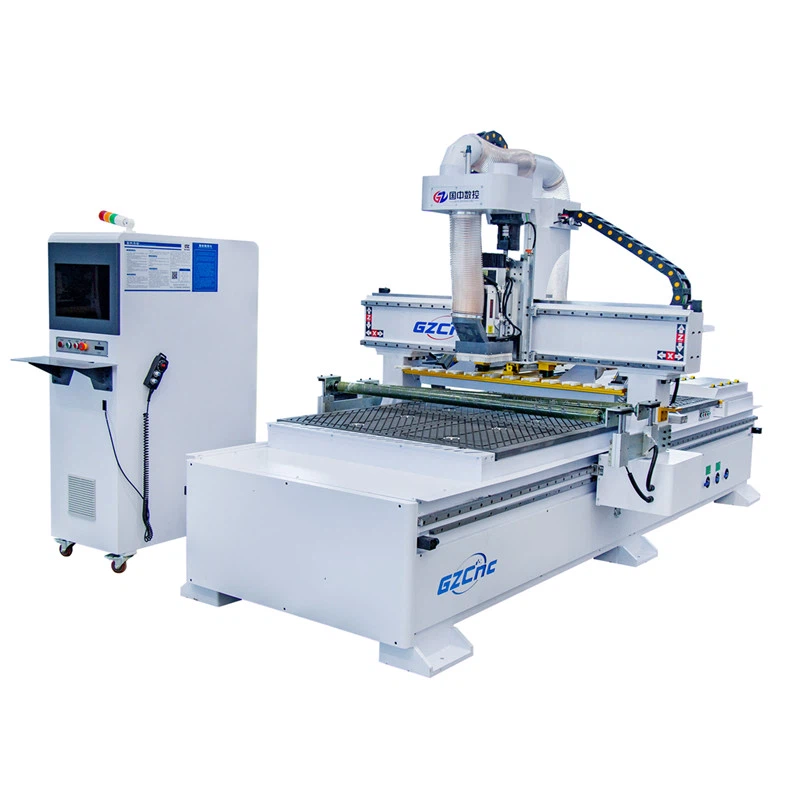
- Visit the Manufacturer's Website: Go to the official website of your ATC CNC Router's manufacturer. Look for the support or downloads section. Here, you'll find the latest firmware releases for your machine.
- Locate the Correct Firmware: Use the model number and serial number of your ATC CNC Router to find the correct firmware version. Make sure to download the latest version available, as it will contain the most recent improvements and security patches.
- Download the Firmware File: Click on the download link for the firmware file. The file is usually in a compressed format, such as a ZIP file. Save it to a known location on your computer.
Preparing the USB Flash Drive
After downloading the firmware, you need to prepare the USB flash drive.
- Format the USB Flash Drive: Insert the USB flash drive into your computer. Format it to the appropriate file system, usually FAT32. This ensures that the ATC CNC Router can read the firmware file from the USB drive.
- Extract the Firmware File: Use a file extraction tool, such as WinRAR or 7 - Zip, to extract the contents of the downloaded ZIP file. Copy the extracted firmware file to the root directory of the USB flash drive.
Updating the Firmware on the ATC CNC Router
Now that the USB flash drive is ready, you can start the firmware update process on the ATC CNC Router.
- Power Off the Machine: Make sure the ATC CNC Router is powered off. This prevents any potential errors during the update process.
- Insert the USB Flash Drive: Insert the USB flash drive containing the firmware file into the designated USB port on the ATC CNC Router.
- Power On the Machine: Power on the ATC CNC Router. The machine should detect the USB flash drive and display a prompt to start the firmware update. Follow the on - screen instructions carefully.
- Wait for the Update to Complete: The firmware update process can take some time, depending on the size of the firmware file and the speed of your machine. Do not power off the machine or remove the USB flash drive during the update. Once the update is complete, the machine will restart automatically.
Post - update Checks
After the firmware update is finished, there are a few checks you should perform.
- Verify the Firmware Version: Check the firmware version on your ATC CNC Router to ensure that the update was successful. This can usually be done through the machine's control panel or software interface.
- Test the Machine: Run some test jobs on the ATC CNC Router to make sure it's functioning properly. Check for any error messages or abnormal behavior. If you encounter any issues, refer to the manufacturer's troubleshooting guide or contact their support team.
Troubleshooting Common Issues
Even with proper preparations, you may encounter some issues during the firmware update process. Here are some common problems and their solutions.
- Firmware Update Fails: If the firmware update fails, check the USB flash drive for any errors. Make sure the firmware file is correctly copied to the USB drive and that the drive is not corrupted. You may also need to try using a different USB port on the ATC CNC Router.
- Machine Does Not Detect the USB Flash Drive: Ensure that the USB flash drive is properly inserted into the port. Try using a different USB flash drive to rule out any issues with the drive itself.
- Machine Malfunctions After the Update: If the machine malfunctions after the update, try restoring the previous firmware version. Contact the manufacturer's support team for further assistance.
Conclusion
Updating the firmware of your ATC CNC Router is a crucial step in maintaining its performance, adding new features, and ensuring security. By following the steps outlined in this blog post, you can safely and effectively update the firmware of your machine.
If you're interested in Loading Unloading CNC Router Machine, ATC CNC Router, or Disc Tool Change CNC Machining Center, feel free to get in touch with us for more information and to discuss your specific requirements. We're here to help you make the most of your ATC CNC Router.
References
- Manufacturer's user manual for the ATC CNC Router
- Manufacturer's official website for firmware updates and support


